Settings
Open Settings from the gear icon in the top-right corner of the dashboard. It controls account-wide notification, security, and storage options.
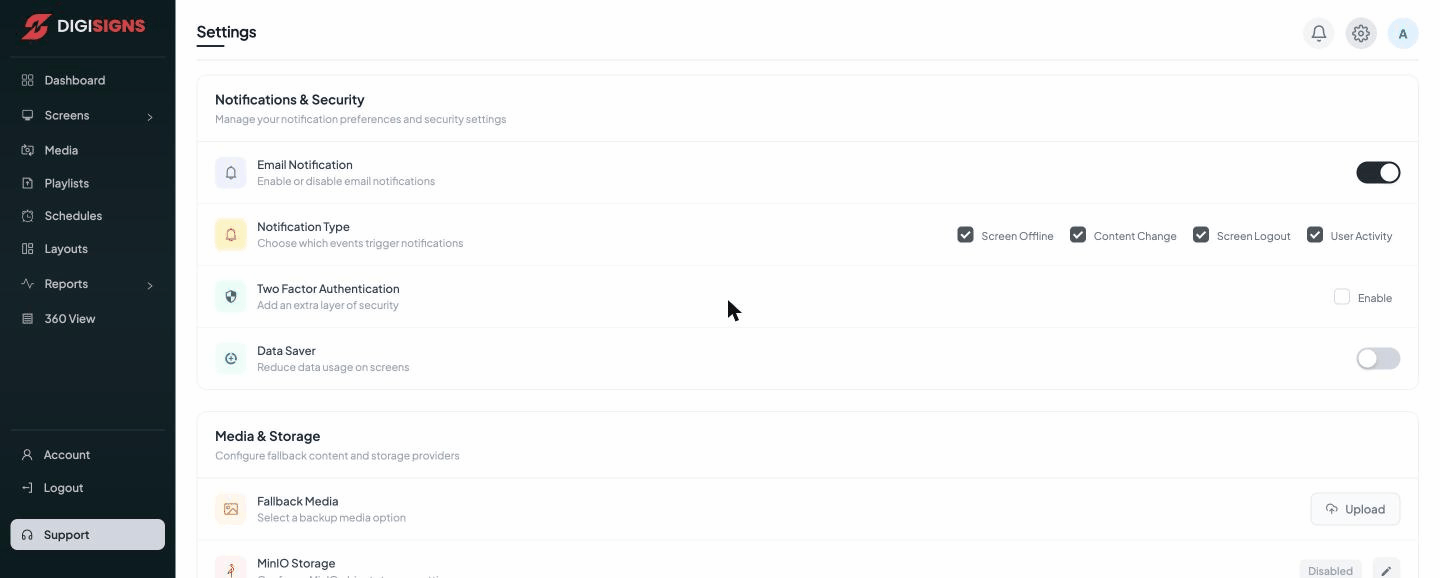
Notifications & Security
- Email Notification — turn account email notifications on or off.
- Notification Type — choose which events trigger a notification: Screen Offline, Content Change, Screen Logout, and User Activity.
- Two Factor Authentication (2FA) — add a second layer of sign-in security. Enable it to require a verification code in addition to your password.
- Data Saver — reduce data usage on screens (useful for players on metered or mobile connections).
Media & Storage
- Fallback Media — set a backup media item to display if a screen can't load its scheduled content, so a display never goes blank.
- MinIO Storage — optionally configure your own MinIO object storage to host media instead of the default storage.
Notifications bell
The bell icon (next to the gear) opens Recent Activity — a quick dropdown of the latest updates from your team (logins, content changes, and so on), with a View all activity link to the full User Activity report.
Tip
Turn on Two Factor Authentication for any account that manages live screens — it's
the single most effective way to protect your network.