Installing Samsung SSSP Tizen Digisigns App
Digisigns is compatible with Samsung Tizen and Samsung Signage Platform (SSSP) screens. This tutorial covers preparing the display, installing the Digisigns player via the URL Launcher, and pairing the screen to your account.
Digisigns runs on Samsung's professional signage screens only and cannot be installed on regular Samsung Smart TVs.
Supported Samsung models
| Platform | Video | HDMI-IN | Portrait Support | Tizen | Models |
|---|---|---|---|---|---|
| SSSP4 | 4K/1080P/720P | Yes | Yes | 2.4 | PHF, PMF, PMH, PHF-P, PMF-BC, OHF, OMH |
| SSSP5 | 4K/1080P/720P | Yes | Yes | 3.0 | DBJ, QHH, QMH |
| SSSP6 | 4K/1080P/720P | Yes | Yes | 4.0 | QBN, QBR, QEN, QHR, QMN, QMR, OMN, OHN-D, OHN-S, OMN-D, VMR-U, QBR-N, QBR-T, OMA, OHA-S, OHB, OMB, OMN-DS |
| SSSP7 | 8K/4K/1080P/720P | Yes | Yes | 5.0 | QPR, QER, OMR |
| Tizen 6.5 | 8K/4K/1080P/720P | Yes | Yes | 6.5 | QBB, QMB, QHB |
| Tizen 7.0 | 8K/4K/1080P/720P | Yes | Yes | 7.0 | QMC, QBC, QHC |
Before you start
- Remove any other signage app already installed on the device.
- Check the device date and time. Incorrect settings cause SSL validation to fail, blocking the connection to our servers.
- Firewall: make sure your network complies with our firewall requirements.
Prepare your Samsung display
Complete the display's first-time setup before installing Digisigns. Skipping these steps is the most common cause of a failed install.
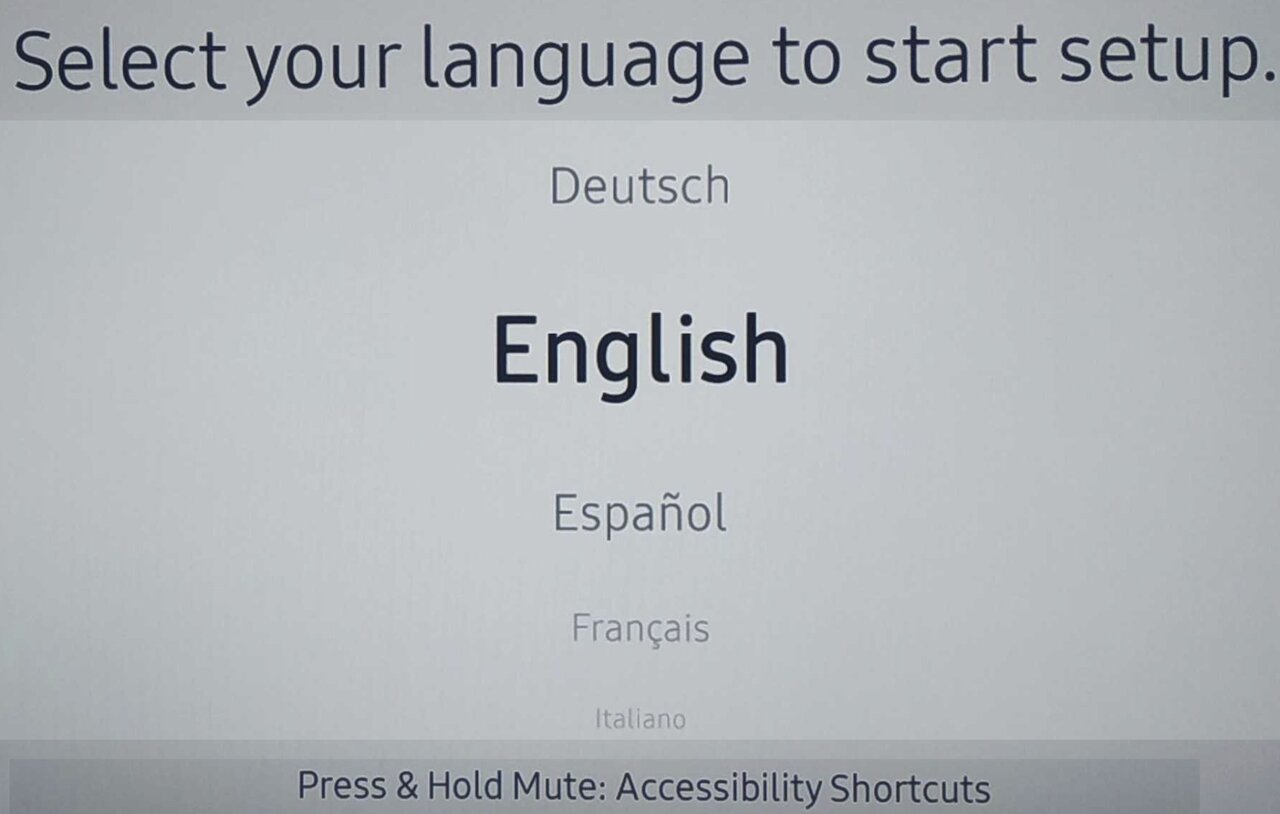
- Power on the display and run the setup wizard — choose your language, then connect to the network (Ethernet LAN recommended).
- Set the correct date, time, and time zone — essential for SSL.
- Choose the standard signage / LFD mode when prompted (not the consumer setup).
Note
If the display was previously configured for another CMS,
before continuing so no residual configuration interferes.
Install via URL Launcher
The exact menu wording depends on your platform version.
On SSSP 6 (Tizen 4)
- Press the Home button on the remote and select URL Launcher.
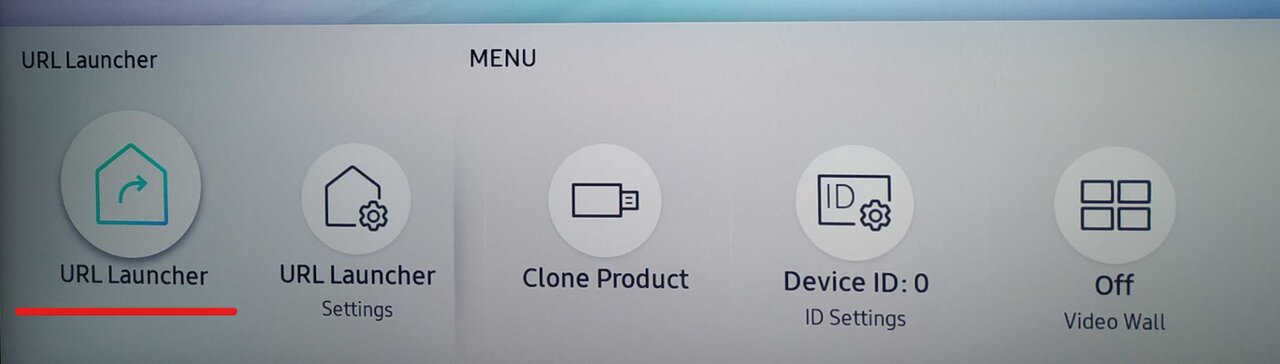
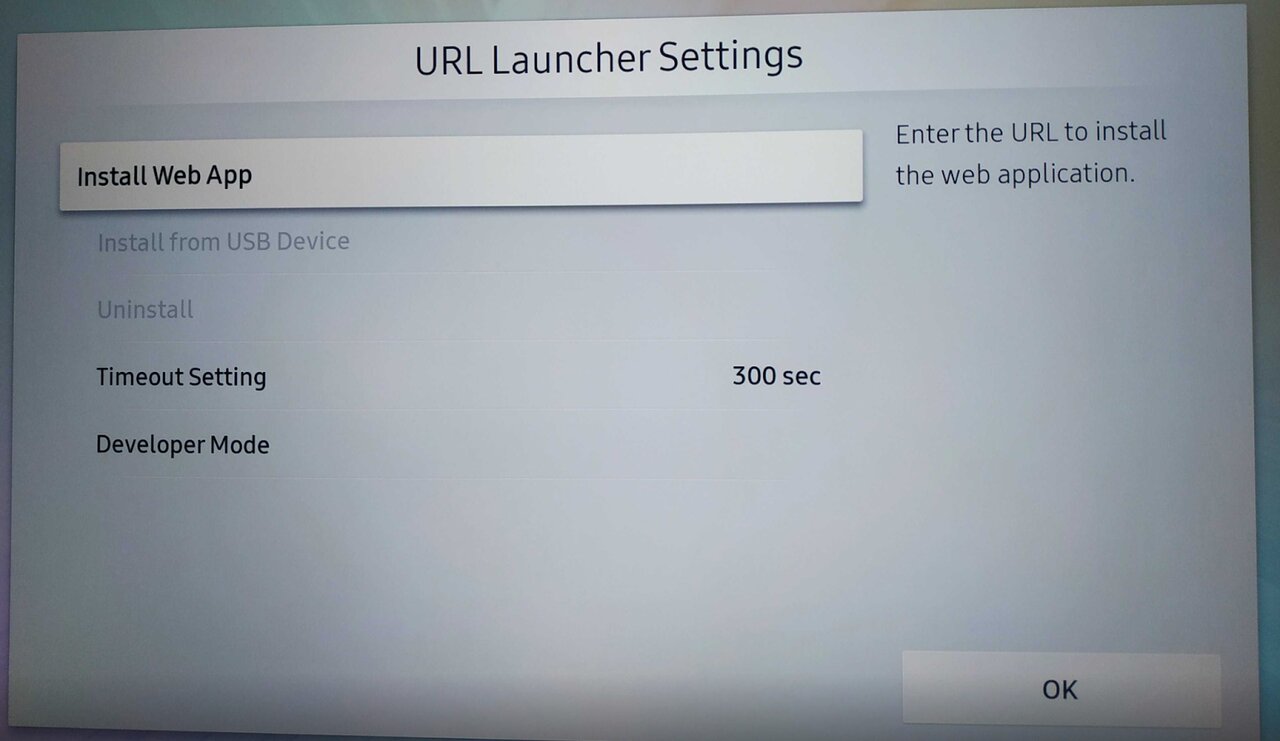
- Select Install Web App.
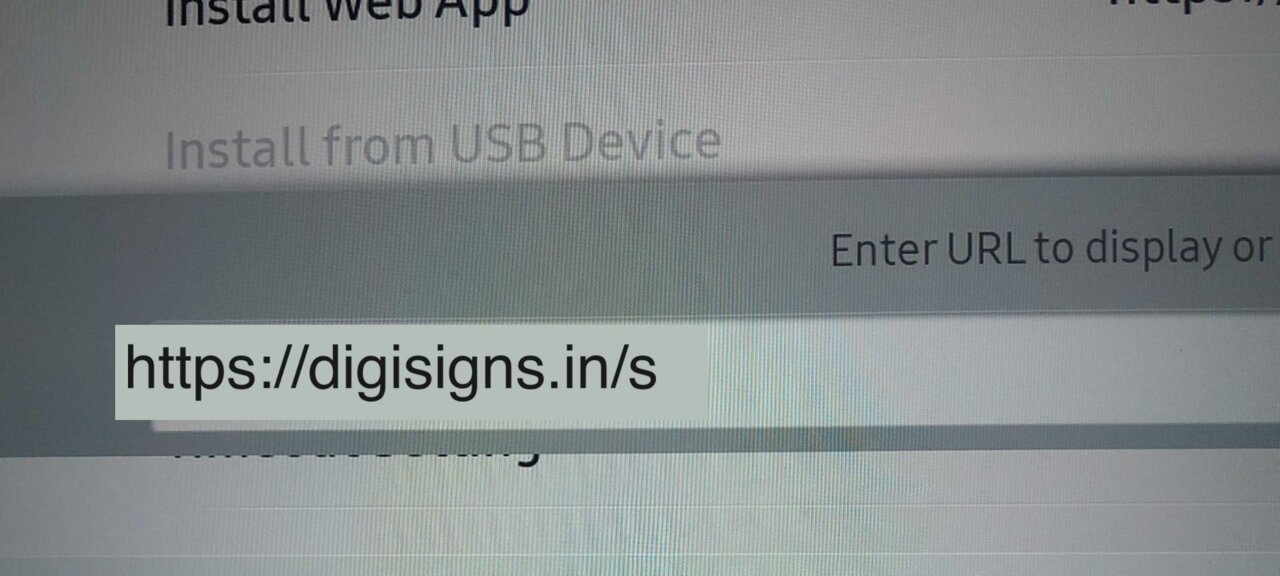
- Enter https://digisigns.in/s and confirm.
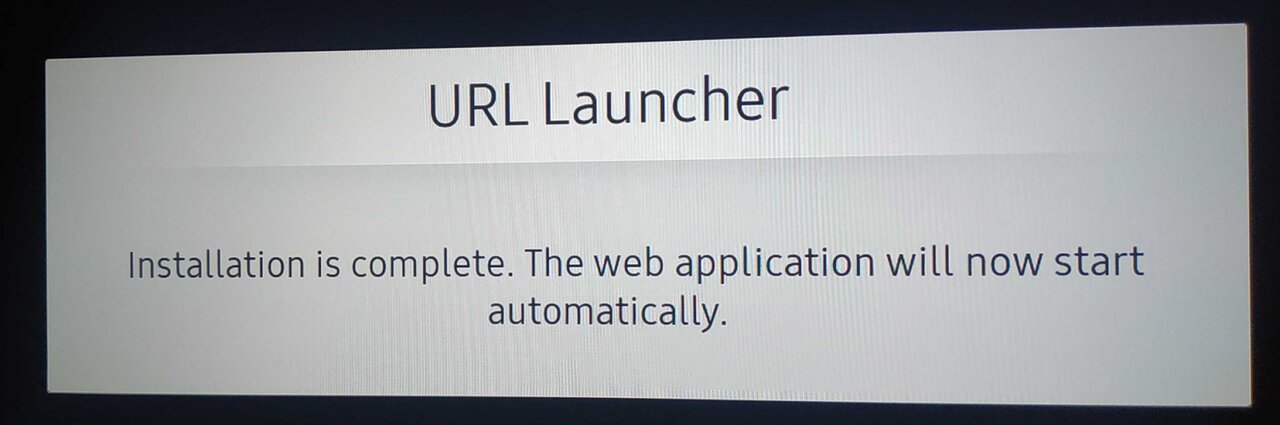
- The Digisigns player installs and starts automatically.
On SSSP 10 (Tizen 6.5) and Tizen 7.0
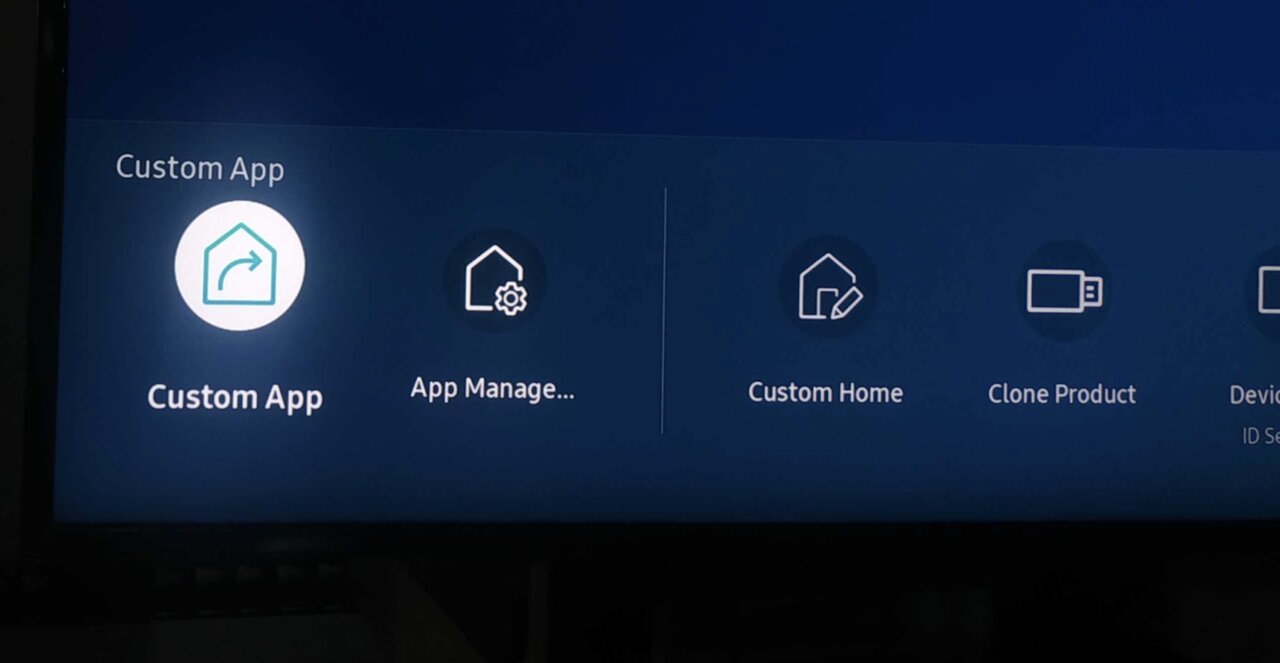
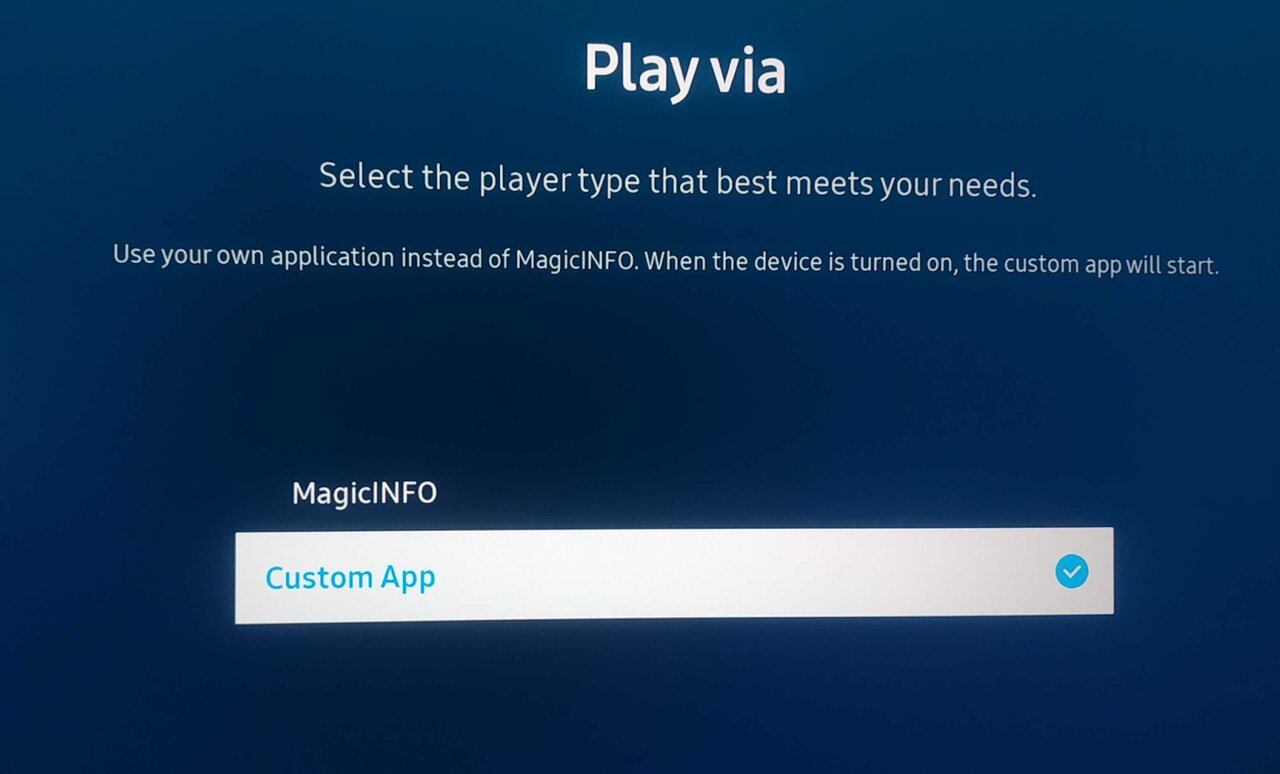
- Press Home, open Settings → System → Play Via, and select Custom App.
- Go to Home → App Management → Install Custom App.
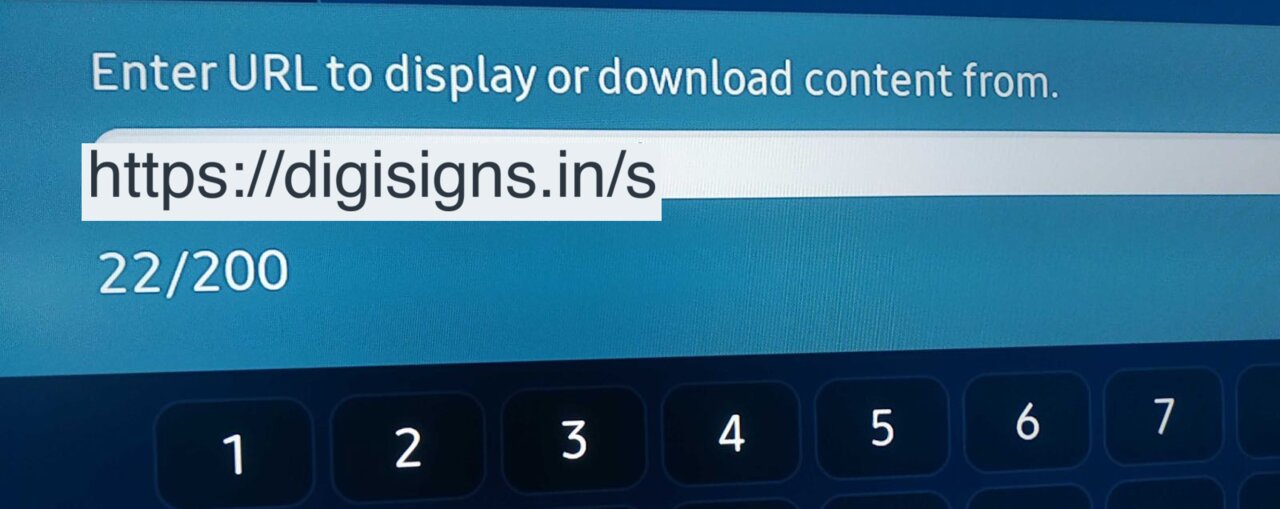
- Enter https://digisigns.in/s and confirm.
- When installation completes, launch the new app from the Home menu to start the player.
Portrait displays
Use the same URL — https://digisigns.in/s — for both orientations; there is no
separate portrait build. For a portrait installation, rotate the panel in the
display's settings — see
Don't see URL Launcher?
If pressing Home loads MagicINFO instead of the URL Launcher / Custom App
option, the panel is set to boot MagicINFO. See
Switch to Digisigns from Samsung MagicINFO
to change Play Via, then return here.
Get the registration code and pair
After the player launches, a 9-digit registration code appears in the centre of the screen.
- Log in to your Digisigns account and go to the Screens section.
- Click + Add Screen and choose the Tizen Player option.
- Enter the 9-digit code and click Save.
The screen registers within a minute and the assigned content begins playing. If the code does not appear, confirm the display has internet access and the correct date/time, then relaunch the Digisigns app from the Home menu.
Recommended settings for signage
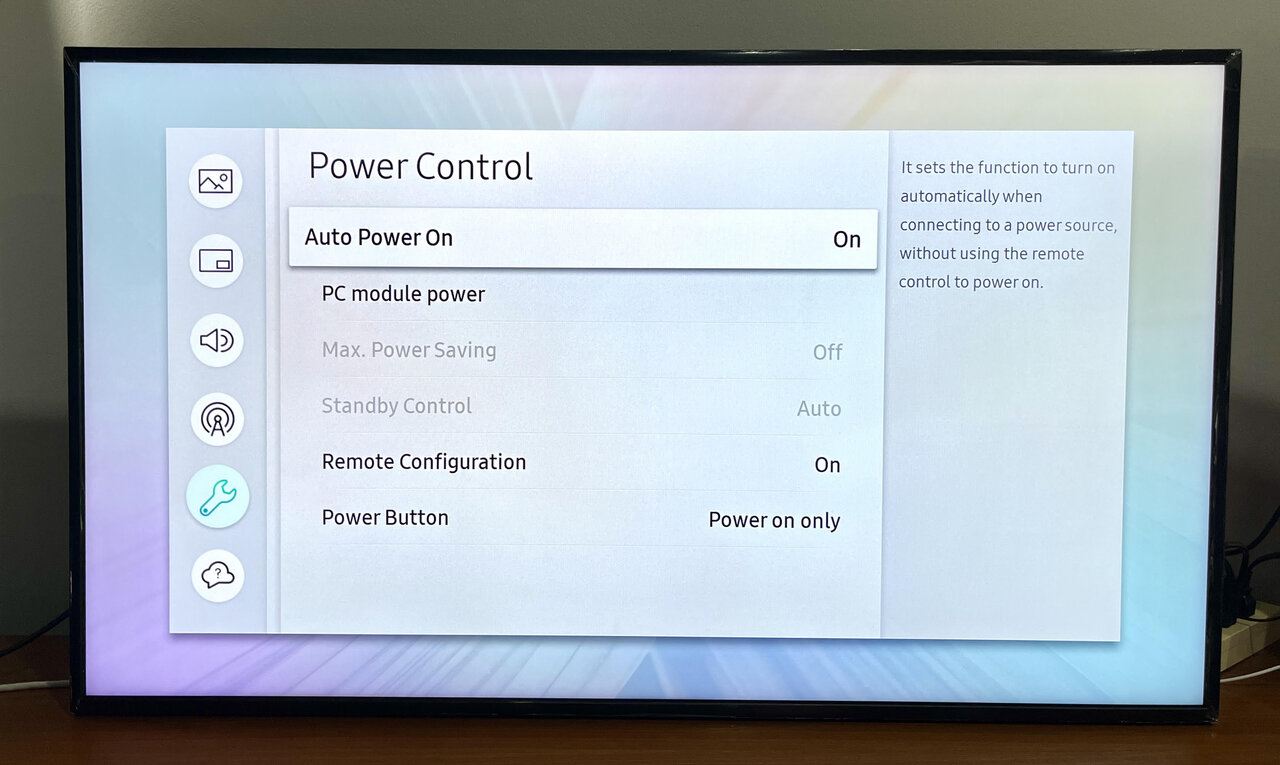
For reliable 24/7 operation, apply these after installation:
- Auto Power Off / No-Signal Power Off: turn off so the display stays on.
- Daily restart: schedule a daily reboot to keep the player fresh.
- Standby / eco timers: disable any sleep or screensaver timers that interrupt playback.
Uninstall
To remove the player, press Home, open the app list (App Management on Tizen 6.5 / 7.0), select the Digisigns app, choose Delete, and power-cycle the display. Reinstall by repeating the steps above.
FAQ
The installation link isn't working — I get "Unable to download".
The Tizen app cannot be downloaded in a normal browser; the URL must be used from within
the Tizen URL Launcher itself. Try adding a trailing slash (/) to the URL — Tizen
inconsistently requires this. If you already have one, try removing it. If it still
fails, check the display's date and time.
"Unable to connect to the server. Please try again later." This almost always means the display's date and time are wrong. Set them correctly (and enable automatic time) so the device can install/update apps.
Need help? Email support@digisigns.in.