Screens
Screens is where you manage every display connected to your account. Open it from the sidebar; it expands into four sub-pages: All Screens, Groups, Tags, and Sync Play.
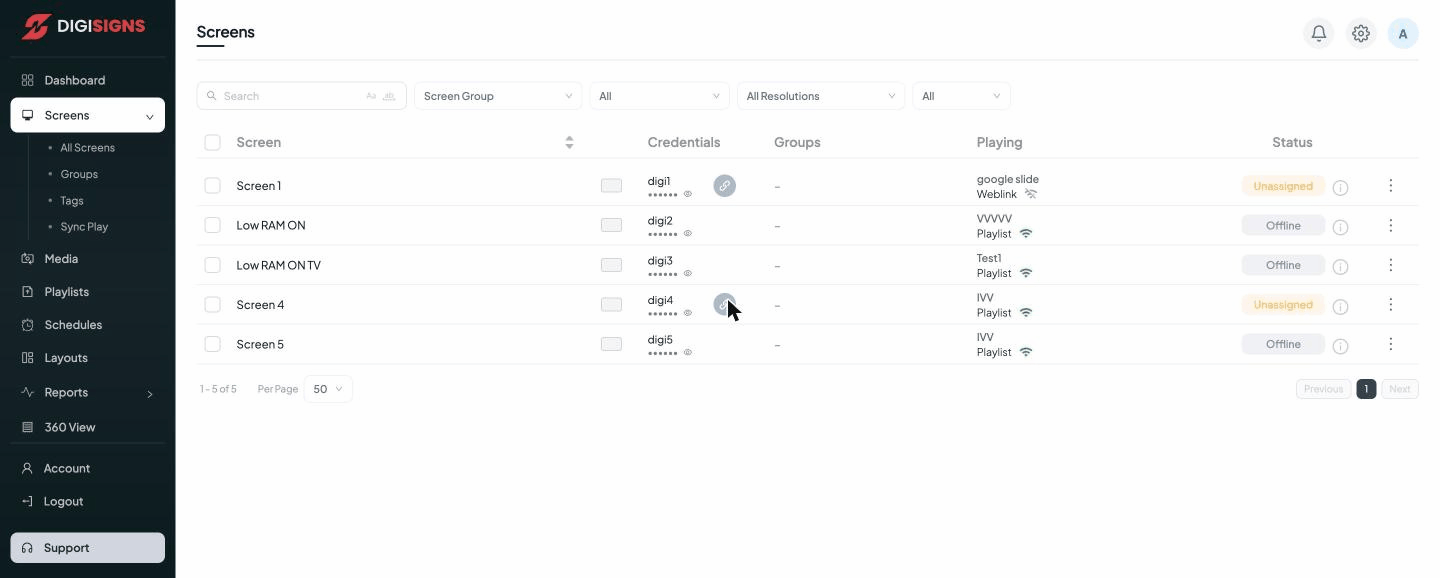
All Screens
The main list shows every screen with these columns:
- Screen — the screen's name. Give screens meaningful names (e.g. Lobby Entrance) so they're easy to find.
- Credentials — each screen has a login (
digi1,digi2, …) and password. A player uses these credentials, or the on-screen pairing/registration code, to connect to this screen. See the player installation guides for how to pair each hardware type. The link icon indicates a connected player. - Groups — any screen groups this screen belongs to.
- Playing — what is currently assigned/playing (a playlist, weblink, app, etc.).
- Status — Playing, Online, Offline, or Unassigned.
Use the toolbar to narrow the list:
- Search by screen name.
- Screen Group, status (All / Online / Offline / …), and All Resolutions filters.
- The three-dot menu on each row opens the full screen actions menu — publish content, take a screenshot, restart the player, and more. The info icon shows detailed status and last-seen information.
Tip
A new player appears here automatically once it is paired and shows its registration
code in the dashboard. Until you assign a playlist or schedule, it stays Unassigned.
Screen actions menu
The three-dot menu on a screen row opens its full set of remote actions:
| Action | What it does |
|---|---|
| Edit | Rename the screen and change its settings — orientation, resolution, group, and tags. |
| Publish Content | Assign a playlist, schedule, app, or media item to play on the screen. |
| Unassign Content | Remove the currently assigned content, returning the screen to Unassigned. |
| Take Screenshot | Capture what the screen is showing right now, to confirm it's playing correctly. |
| Preview | Preview the screen's assigned content from the dashboard. |
| Device Info | View hardware and player details — model, OS, app version, IP address, and storage. |
| Activity Log | See this screen's event history — connections, content changes, and restarts. |
| Schedules Info | View the schedules currently targeting this screen. |
| Enable Data Saver | Reduce the screen's bandwidth use by lowering sync frequency. |
| Clear Screen Cache | Clear cached media on the player to free space or force a fresh download. |
| Restart Screen | Remotely reboot the player. |
| Archive Screen | Remove the screen from the active list without deleting its history. |
| Sign Out | Sign the player out of this screen's credentials. |
Groups
Groups let you organise screens (for example by location, store, or floor) and act on many at once — assign the same playlist to a whole group, or publish to a group instead of selecting screens one by one. Create a group, then add screens to it.
Watch the tutorial:
Tags
Tags are flexible labels you attach to screens for filtering and bulk actions across groups — for example tagging all screens in a region or all portrait displays.
Sync Play
Sync Play synchronises playback across multiple screens so they start and loop together — essential for video walls and multi-panel installations where the content must line up frame-for-frame.
Note
Sync Play requires the screens to be on a reliable network. Group the screens you want
to synchronise, then enable Sync Play for that set.