Configuring networks
Before binding a NovaStar Taurus to Digisigns, bring it online. The Taurus supports a wired (Ethernet) connection or Wi-Fi, configured with the ViPlex Handy (mobile) or ViPlex Express (Windows) app.
Note
The Taurus broadcasts its own Wi-Fi access point named **AP + the last 8 digits of the
SN. The hotspot password and the **admin login password are printed on the SSID
label on the device.
Wired (Ethernet)
Connect an Ethernet cable from your network to the Ethernet port on the Taurus. The player obtains an IP address automatically — no further configuration is required.
Wi-Fi
Connect to the player's own Wi-Fi access point first, then join the Taurus to your wireless network.
Using ViPlex Handy (mobile)
- On your phone, connect to the Taurus Wi-Fi access point (
AP########). - Open ViPlex Handy and tap Add Device.
- Open Device Management, find the player, and connect (user admin, password from the SSID label).
- Return to the home page and open Screen Management → Network Settings → Wireless Network.
- Enable Wi-Fi, then select your network and enter its password to connect.
Using ViPlex Express (Windows)
- Connect your PC to the Taurus Wi-Fi access point, then open ViPlex Express.
- Authenticate to the player (user admin, password from the SSID label).
- Go to Control → Network configuration and select the player from the list.
- Under Wi-Fi Network, join your wireless network. (The Player Wi-Fi AP section also lets you rename the device hotspot, change its password, or isolate it from the local network.)
- Click Apply to save.
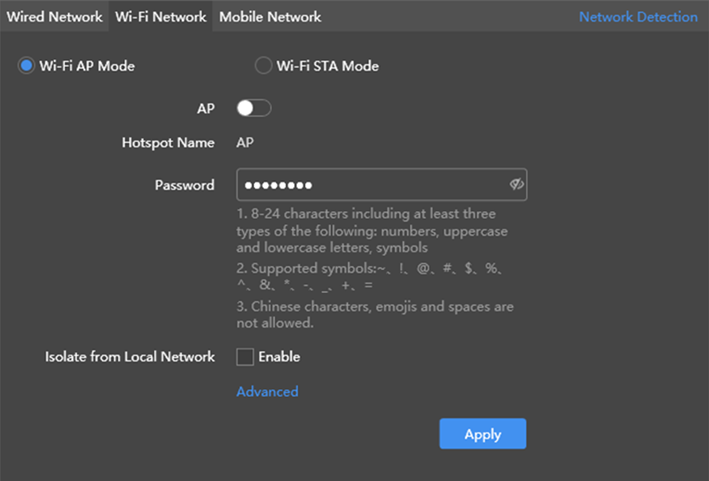
The Wi-Fi Network tab in ViPlex Express.
Once the player has internet access, continue to Binding to the Digisigns server.