Schedules
Schedules play specific content at set dates and times — perfect for time-bound campaigns, dayparting (different content morning vs evening), or one-off events. Outside a schedule's window, the screen falls back to its assigned playlist.
Watch the tutorial:
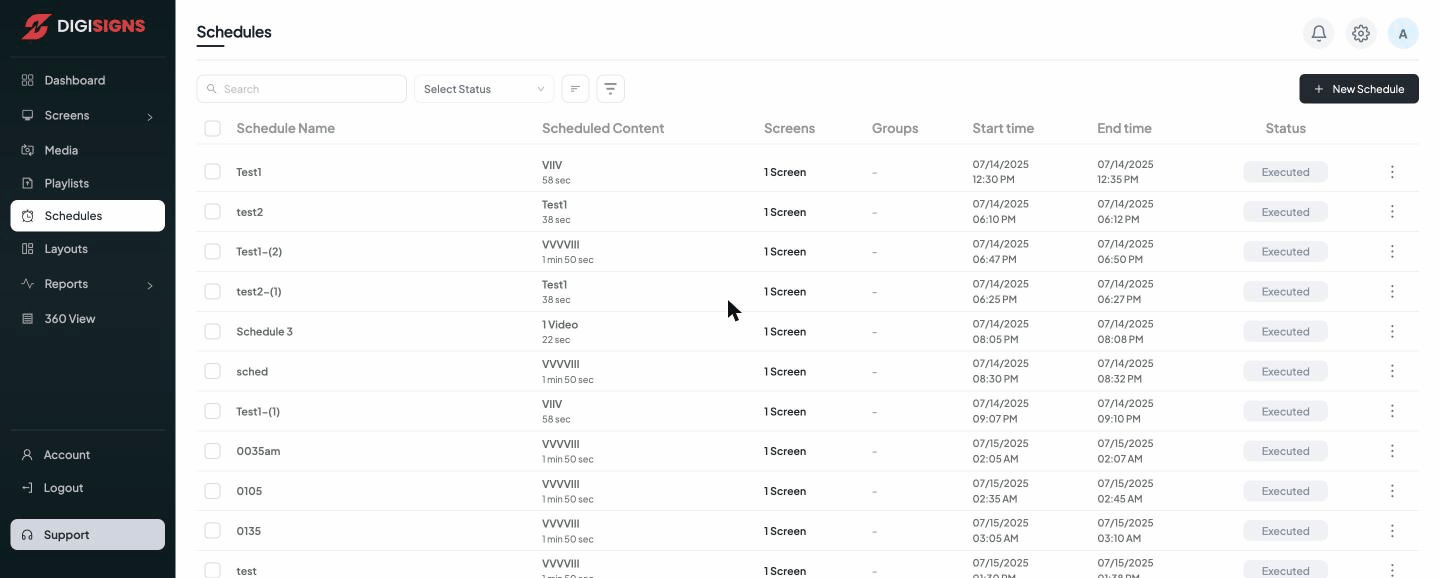
The schedule list
Each schedule shows the Schedule Name, the Scheduled Content (and its duration), the target Screens and Groups, the Start time and End time, and a Status:
- Scheduled — set for a future time.
- Executed — its time window has passed.
Creating a schedule
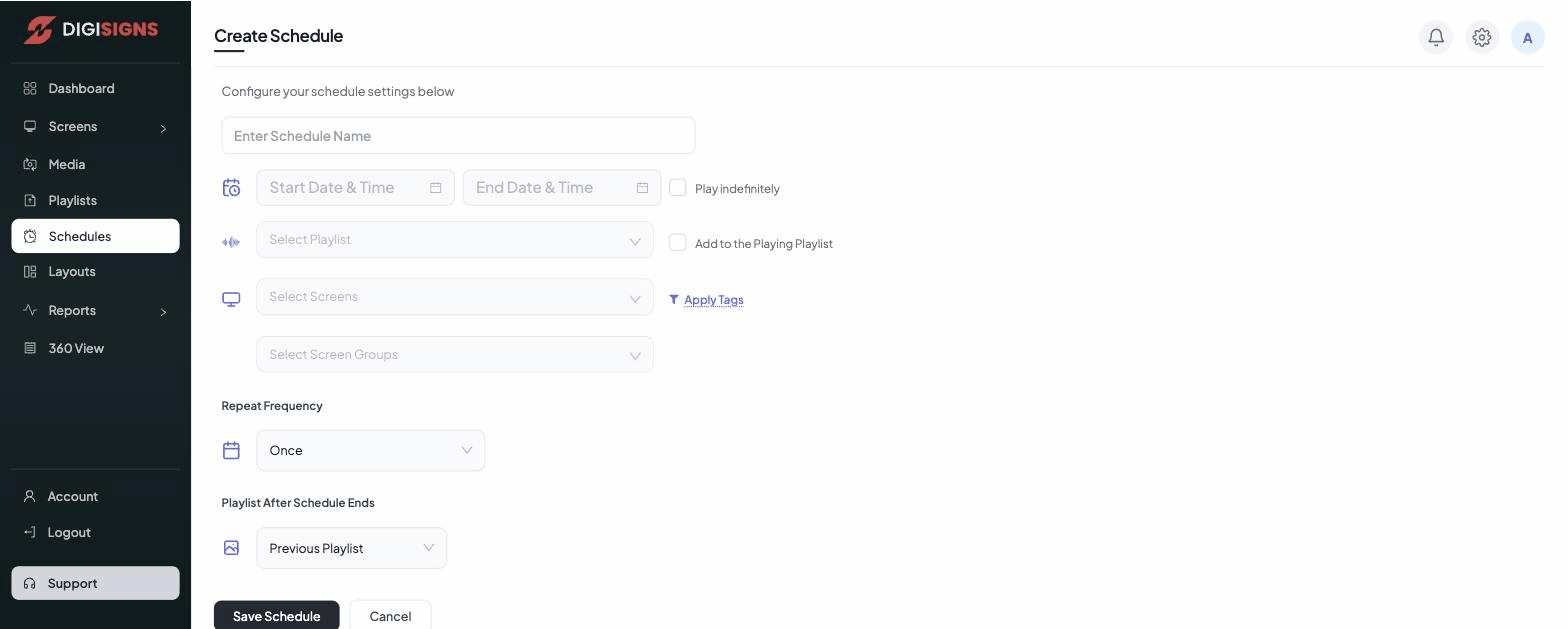
- Click New Schedule (top right).
- Name the schedule.
- Choose the content to play (a playlist or media item).
- Choose the screens and/or groups it should play on.
- Set the start and end date/time.
- Save — the schedule activates automatically at its start time.
Use Select Status to filter the list (for example, to see only upcoming schedules).
Note
Schedules take priority over a screen's default playlist during their window. When the
window ends, the screen automatically returns to its regular content.