Media
Media is your content library — every image, video, PDF, web link, and YouTube clip you've added lives here, ready to drop into a playlist or publish to a screen.
Watch the tutorial:
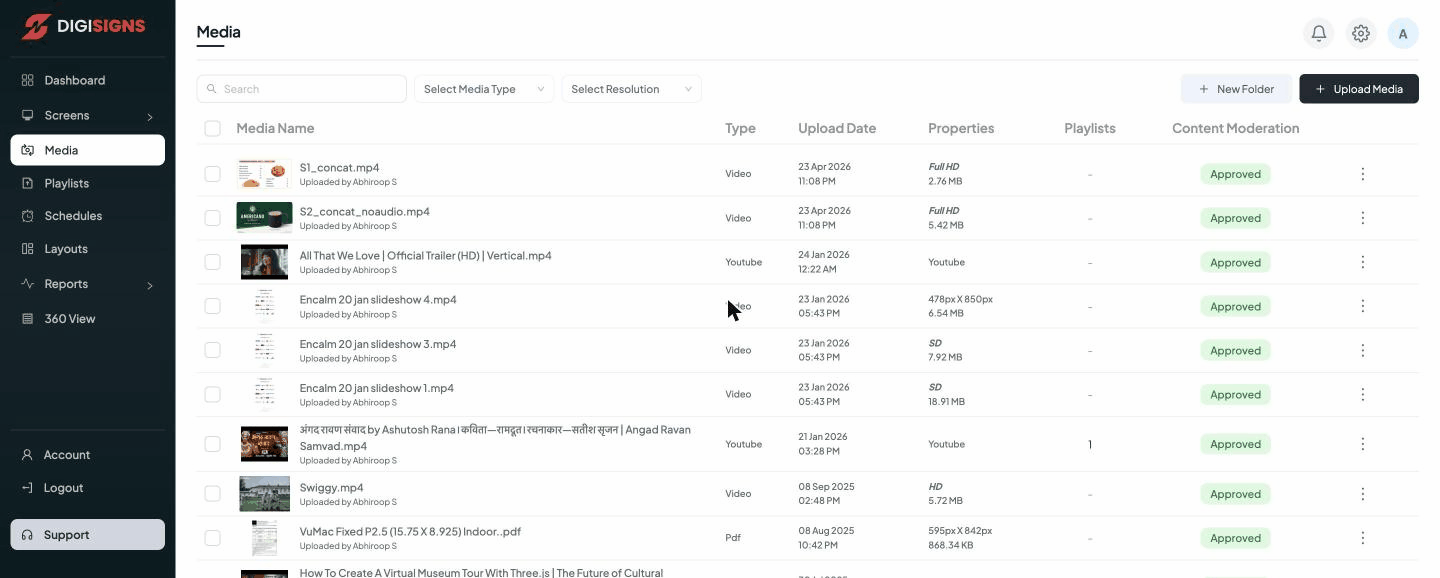
The media list
Each item shows:
- Media Name — the file name and who uploaded it.
- Type — Image, Video, YouTube, PDF, Weblink, or Audio.
- Upload Date — when it was added.
- Properties — resolution (e.g. Full HD, 1920 × 1080px) and file size.
- Playlists — how many playlists currently use this item.
- Content Moderation — Approved or Blocked (see below).
Uploading content
Use the toolbar at the top:
- Upload Media — add files from your computer (images, videos, PDFs, audio). You can also add a YouTube link or a Weblink to display a web page.
- New Folder — create folders to keep large libraries organised.
- Search, Select Media Type, and Select Resolution filter the library.
Tip
Match your media's resolution and orientation to your screens. Vertical (portrait)
screens need vertical content; a 1920 × 1080 video will letterbox on a portrait display.
Content moderation
Every item carries an Approved or Blocked status. Blocked media will not play on screens — this lets an administrator review and gate content before it goes live. Approve or block items from the row's actions.
Note
Storage counts against your plan's limit (shown on the Dashboard).
Delete unused media to free space, or upgrade your plan for more.