Playlists
A playlist is an ordered sequence of media that plays as a loop. Playlists are the most common way to put content on a screen: build the loop once, then assign it to one or many screens.
Watch the tutorial:
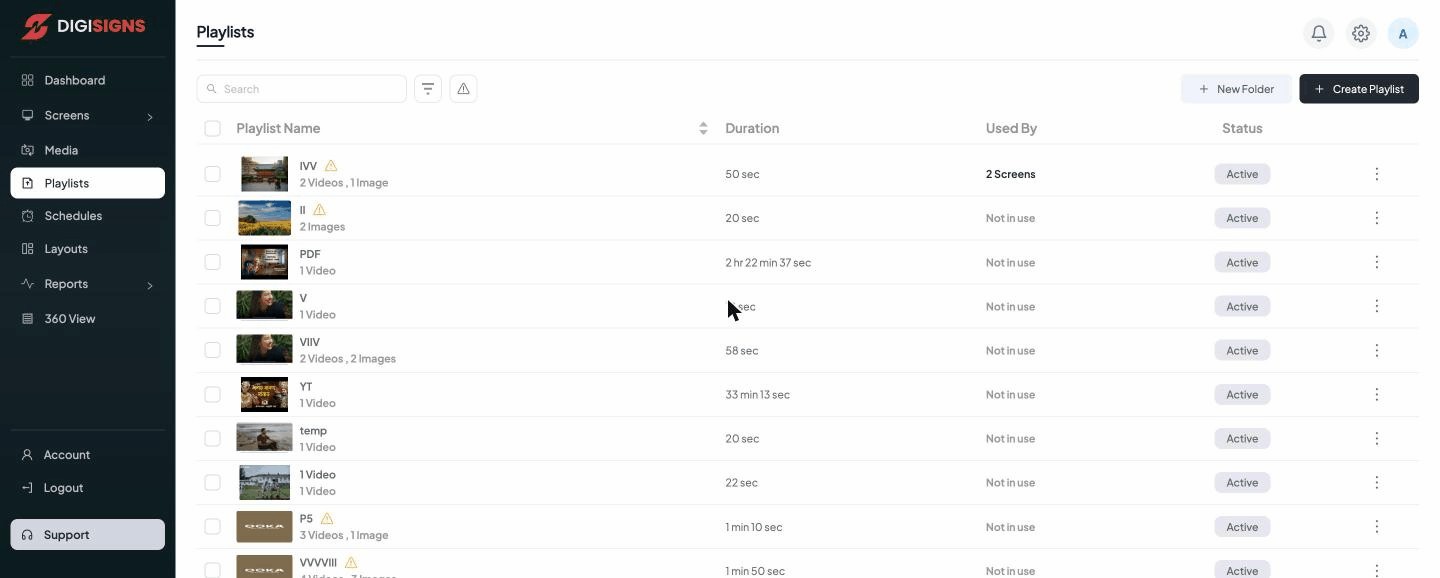
The playlist list
Each playlist shows:
- Playlist Name with a summary of its contents (e.g. 2 Videos, 1 Image).
- Duration — the total loop length.
- Used By — how many screens are currently playing it (or Not in use).
- Status — Active or inactive.
The three-dot menu on each row lets you edit, duplicate, rename, or delete a playlist, and assign it to screens.
Creating a playlist
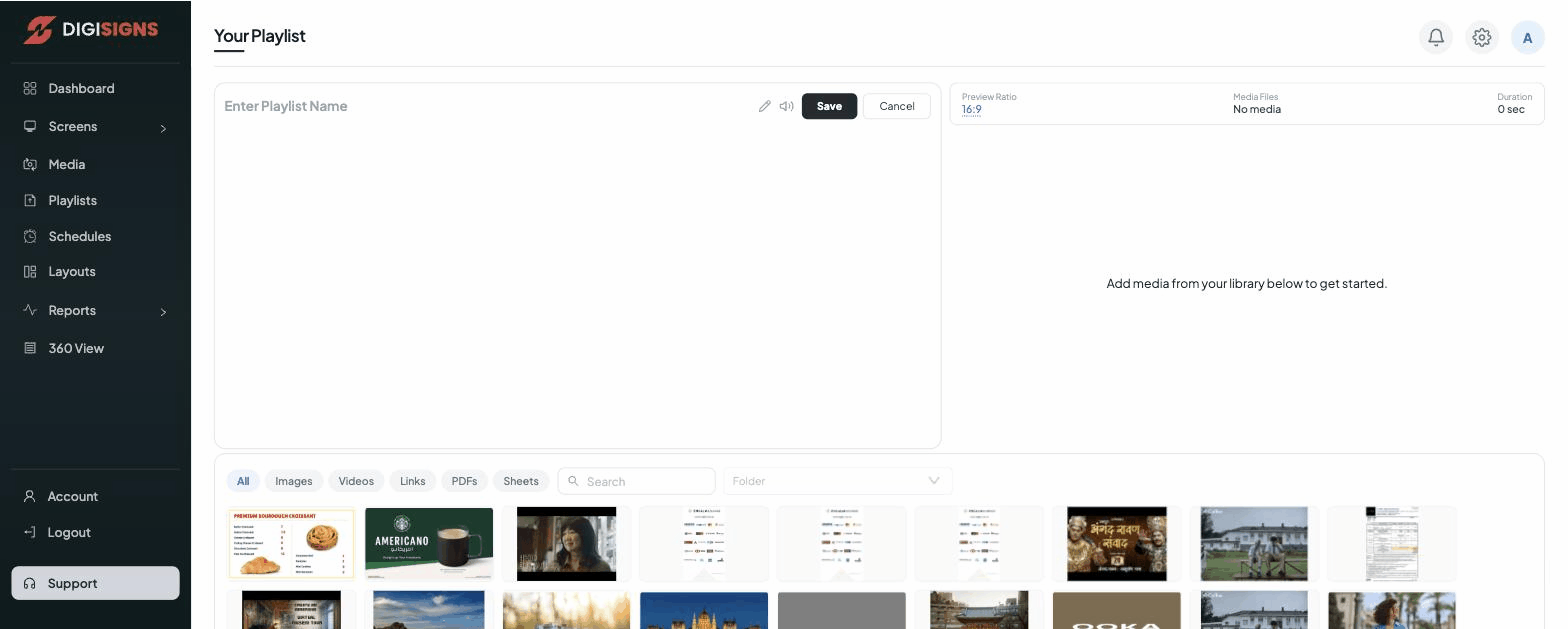
- Click Create Playlist (top right).
- Give the playlist a name.
- Add items from your Media library — images, videos, web links, YouTube, and apps.
- Re-order items by dragging them into the sequence you want.
- Set the duration each image/web item stays on screen (videos play their full length).
- Save, then publish the playlist to a screen or a group.
Use New Folder to keep large numbers of playlists organised.
Tip
One playlist can be reused across many screens. Update the playlist once and every
screen using it picks up the change on its next content sync.